
Add a document Free & Pro
Create a FileDeck document under Documents → Add New Document: attach a file by drag-and-drop or from the Media Library, then publish.
Updated July 23, 2026
To add a document, go to Documents → Add New Document, attach a file by drag-and-drop or from the Media Library, give the document a title, and publish. FileDeck captures the file’s size, type, and filename automatically, so the document is ready to appear in your library as soon as it is published.
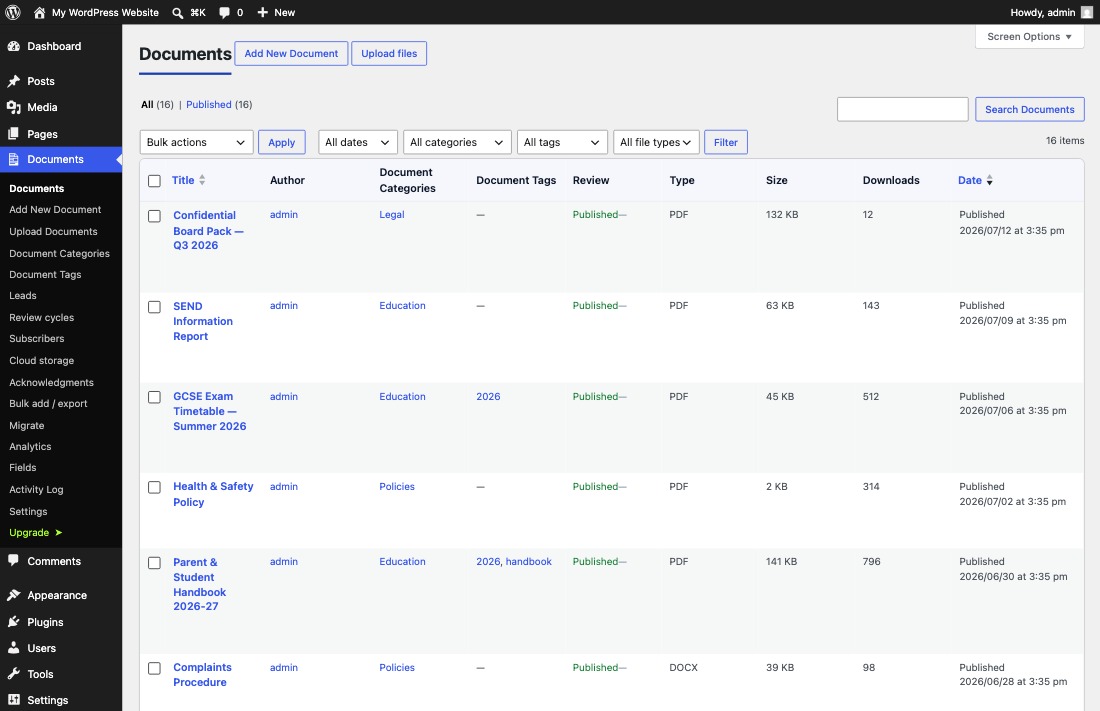
How to add a document
- Go to Documents → Add New Document in wp-admin.
- Enter a title. This is the name visitors see, search, and sort by in the library.
- Attach the file. Drag and drop it onto the upload area, or pick an existing file from the Media Library. The editor pre-fills the title from your file, so you can attach first and then tidy the title.
- Optionally add an excerpt (a short summary), a longer description in the editor, and a featured image. Each of these feeds its own library column — see the document fields reference for what maps where.
- Assign document categories and tags in the sidebar. Categories power the folders layout and the category filter — see Organize with categories and tags.
- Click Publish.
The document now appears in any library that includes it, including the "Document Library" page FileDeck creates on activation.
Adding many files at once? Use Documents → Import & Export → Upload files instead — drag in a whole batch and each file becomes a published document titled from its filename. See bulk upload documents.
What FileDeck captures automatically
When you attach a file, FileDeck records its size, type, and filename. You never enter these by hand, and they feed the size, type, and filename columns in your library. If you later swap the file, they update automatically.
One file per document
Each document holds exactly one file. When a new revision comes along, do not create a second document — replace the file on the existing document so its URL and download link stay the same. See Replace or update a document’s file. On Pro, every replacement is also recorded in version history, and a document can point at an externally hosted file instead of an upload — see external files.
FAQ
What file types can I upload?
Any file type your WordPress site allows in the Media Library. PDFs, Office files, images, audio, video, and archives all work.
Do I need to fill in the file size or type?
No. FileDeck captures size, type, and filename automatically when you attach the file.
Where does my document show up after publishing?
On the auto-created "Document Library" page and in any Document Library block or shortcode whose category scope includes it.
Duplicating a document
Hover a row on Documents and choose Duplicate. You get a copy carrying the original’s categories, tags, custom fields, access rules and delivery settings — the settings, not the file, are what take the time on a library with a house style.
The copy is created as a draft, whatever the original was, and its title gets "(copy)" appended. A duplicate that published itself would put an unedited copy straight into the live library.
Counters do not come across: the copy starts at zero downloads and zero views rather than inheriting a history it did not earn. Nor do the file checksum or any acknowledgment records, which belong to the original.
Still stuck? Email support@getfiledeck.com.