
Migrate from FileBird Pro
Turn FileBird folders into a FileDeck library in one click — your documents and your folder tree, without dragging your photo library in with them.
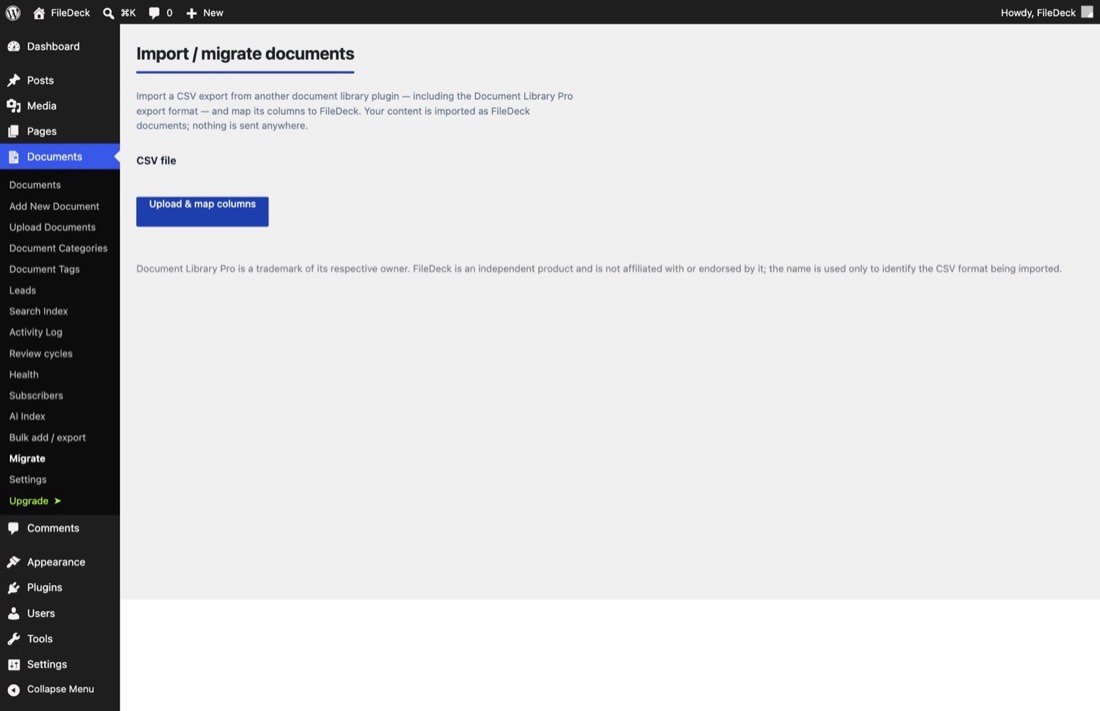
FileDeck Pro reads your FileBird folders directly and turns the documents in them into a document library — no CSV export, no column mapping. Go to Documents → Import & Export → Migrate, and if FileBird’s folders are present FileDeck shows how many documents it found and an Import button.
FileDeck Pro — this feature is included in all Pro plans. See pricing
Using FileBird Document Library too? This is the import you want. FileBird Document Library displays FileBird’s folders rather than storing anything itself, so its documents are your FileBird documents — one import covers both.
What comes across
| From FileBird | Becomes in FileDeck |
|---|---|
| Each document filed in a folder | One FileDeck document |
| The file’s title | Document title |
| The file’s caption (or its description) | Document description |
| Your folder tree, including sub-folders | Document categories, with the same nesting |
Files are linked, not copied — each document points at the same Media Library file it always did, so nothing is duplicated on disk and FileBird keeps working exactly as before.
Your photos are not imported
This is the important part. FileBird organises your entire Media Library, so its folders hold your images just as readily as your PDFs. Importing everything in them would turn a few thousand photos into a few thousand "documents" and bury the files you actually wanted.
So by default FileDeck imports documents only: PDFs, Word, Excel, PowerPoint, OpenDocument, text, CSV, archives — anything that isn’t an image, a video or an audio file. The number on the Migrate card already reflects that, so what you’re told you’ll get is what you get.
If you genuinely do want images imported as documents — a library of print-ready artwork, say — a developer can change it with one filter:
// Import everything FileBird has filed, images included.
add_filter( 'filedeck_import_filebird_skip_mime', '__return_empty_array' );
How your folders map
Your folder tree is recreated as FileDeck categories with the same nesting, so Policies → HR becomes an HR category inside Policies.
Two details worth knowing:
- Collections aren’t folders. FileBird collections are a saved grouping laid over your folders, so importing them as well would file the same document under two names. Only folders become categories. A document that lives only in a collection isn’t imported.
- A document in more than one folder keeps all of them. FileDeck is happy for a document to be in several categories, so nothing is dropped.
Files not in any FileBird folder aren’t part of the library and aren’t imported.
How to import
- Keep FileBird active for now, so FileDeck can read its folders.
- Go to Documents → Import & Export → Migrate.
- On the FileBird card, choose Publish or import as drafts, then click Import.
- The import runs in the background — you can leave the page.
- When it finishes, check Documents → All Documents and Documents → Categories.
- Rebuild the search index at Documents → Settings → Search Index so full-text search picks up the new documents.
Do I have to uninstall FileBird?
No — and you may well want to keep it. FileBird organises your Media Library in wp-admin; FileDeck publishes a document library on your site. They don’t conflict, and because files are linked rather than copied, both keep working on the same files.
Is it safe to run more than once?
Yes. FileDeck records which file each document came from, so re-running skips anything already imported and never creates duplicates. If you add more documents to FileBird later, run it again to bring across just the new ones.
FAQ
Will my documents keep their download counts?
FileBird doesn’t record downloads, so there are none to bring across. From the import onwards FileDeck counts downloads for every document.
Does any access control come across?
FileBird has no access control — folders organise the admin Media Library, they don’t restrict anyone. So imported documents get your normal visibility. If some should be private, set that up afterwards with FileDeck’s access rules.
What about FileBird Pro’s colours, icons and custom sort order?
Those are display settings for the Media Library rather than facts about your documents, so they aren’t imported. Your folder names and structure are.
FileBird and FileBird Document Library are trademarks of their respective owner. FileDeck is an independent product, not affiliated with or endorsed by them; the names are used only to identify the plugin whose data is being imported.
Still stuck? Email support@getfiledeck.com.