
Instant search, sorting, and filters Free & Pro
How FileDeck's instant search, multi-column sorting, and multi-select category and tag filters work, including counts, active filters, and behavior in the folder layout.
Updated September 26, 2026
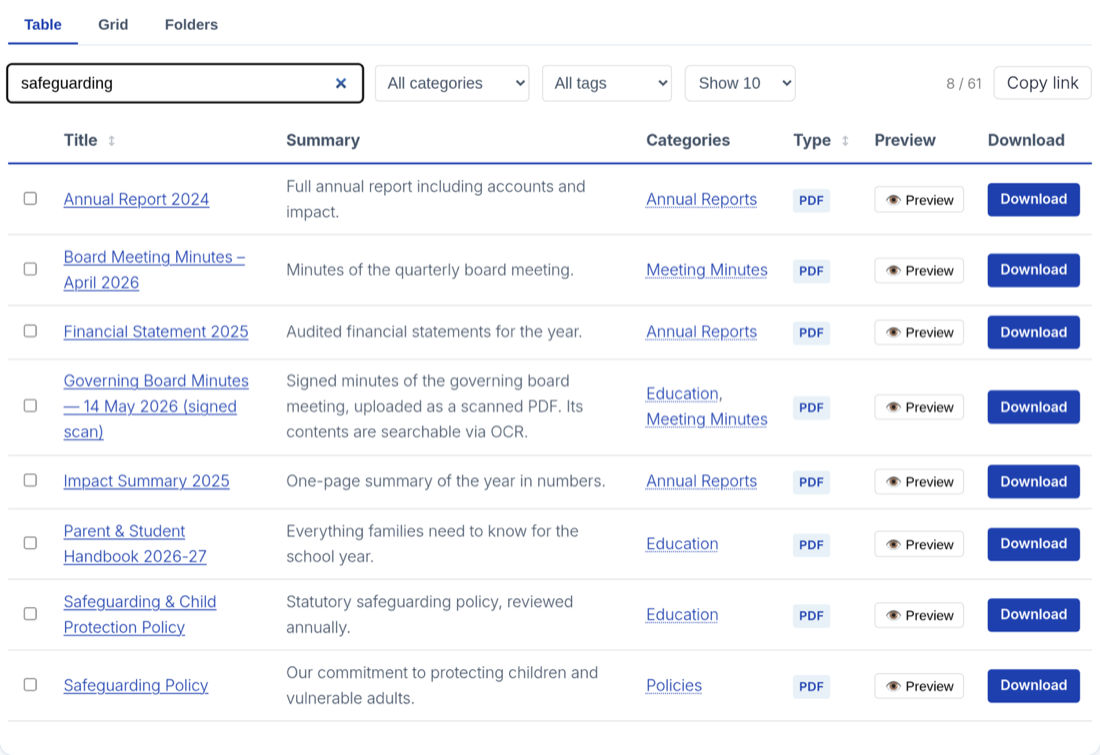
Every FileDeck library includes an instant search box, click-to-sort columns, and multi-select category and tag filters — no setup required. Results appear as the visitor types, without a page reload, in every layout and in both the free and Pro versions.
What search matches against
The search box filters documents as the visitor types, matching against these fields:
- Title
- Excerpt (a document with no excerpt is matched on the opening of its description instead)
- Categories
- Tags
- Filename
- Reference number, if the document has one
Because the original filename is auto-captured when you attach a file, visitors who know a file’s name — "budget-2026.xlsx" — find it even if the document’s title says something different.
Searching inside documents
Once the content index is built, search also covers the text inside your PDFs, Office and OpenDocument files, and text files — visitors can find a document by a phrase on page 12. Indexing runs on your own server under Documents → Settings → Search Index (FileDeck Pro); see content search.
Click-to-sort columns
In the table layout, every column header is clickable: one click sorts by that column, a second click reverses the direction. This is on top of the initial order you set with the sort_by attribute (title, date, modified or menu_order) and sort_order (asc or desc) in the shortcode.
Sorting by more than one column
Shift-click a second heading to add it as a tiebreaker rather than replacing the first — file type, then newest first. Keyboard users get the same thing with Shift + Enter on a focused heading. Each participating column shows a small number telling you where it sits in the order, because the direction arrow alone cannot say which column wins.
Up to three columns can take part at once. An ordinary click on any heading goes back to sorting by that column alone.
One limit worth knowing: only one of Size, Downloads, Views, Type, Reference or a custom field column can be in the sort at a time — those are stored differently from Title and Date, and the database cannot order by two of them reliably. Add one of them plus as many of Title, Date, Updated and ID as you like. If you pick a second, FileDeck keeps the first and ignores the extra rather than quietly sorting by something you did not ask for.
Date filters
Two optional controls narrow a library by when its documents are dated: the date-added filter (Past week / month / 3 months / year) and the year filter, a dropdown of the years the documents actually span. Both apply alongside the category, tag and custom-field filters.
Category and tag filters
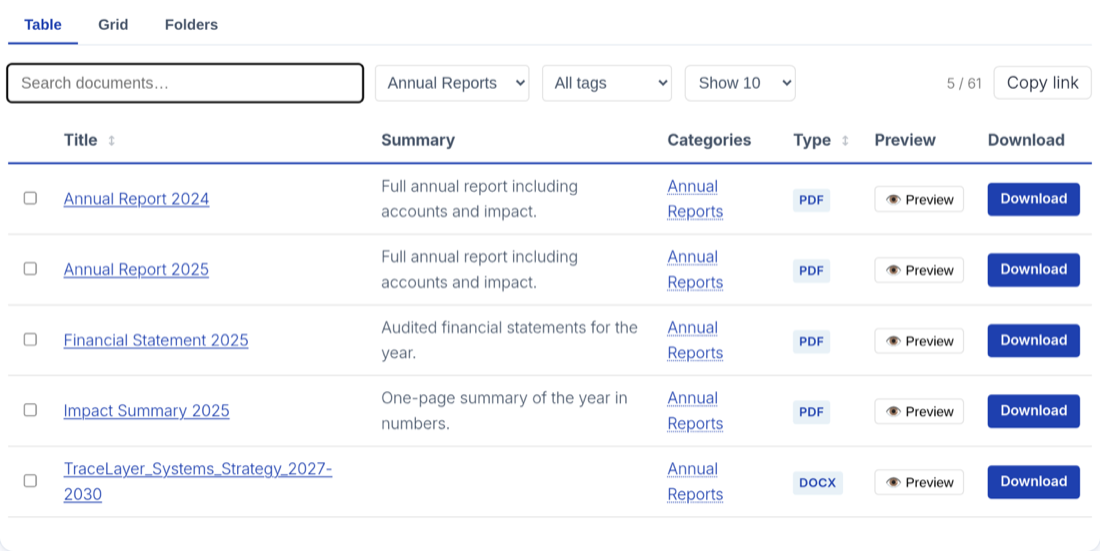
Alongside the search box, each library shows filters for document categories and tags. Visitors open one and tick the values they want, and filters combine with search — a visitor can filter to the "Forms" category and then type to search within it. If you have scoped the library to a category in the block or shortcode, the filters operate within that scope.
Category names in the table are clickable too: clicking one filters the library by that category (toggle under Documents → Settings → Features).
Picking more than one value
Every filter is multi-select. Tick two categories and the library shows documents in either one — widening the results, not narrowing them to documents that are somehow in both.
Different filters still narrow each other: a category and a tag means documents that have both. The rule is any of the values inside one filter, all of the filters together — which is what people expect from a set of tick boxes, and it means adding a value can never make the list shorter.
Counts beside every option
Each value shows how many documents sit behind it, so a visitor can see what is worth clicking before clicking it. The numbers respond to whatever else is already applied: search for "budget" and the category counts re-narrow to the budget documents.
A count always matches the rows the visitor will actually see. If a restricted document appears in the list as a locked row, it is counted; if you have hidden restricted documents entirely with hide_protected, it is not.
On libraries past the server-mode threshold — roughly 500 documents — counts are computed for scopes up to 3,000 documents. Above that the options simply show no number rather than a slow or wrong one.
The active-filter bar
Once anything is applied, a row of chips appears above the library naming each active value, with a Clear all beside them. Removing one chip drops just that value and leaves the rest in place — the reason chips are one-per-value rather than one-per-filter.
Putting filters under the column headings
By default the filters sit in the bar above the library. Under Documents → Settings → Display, set Filter position to Under the column headings to move them into a row inside the table head instead, each under the column it filters. Per library, use filter_position="headings" on the shortcode.
Three things to know. It applies to the table layout only — the folders layout renders one table per folder, so a heading row there would repeat every filter inside every folder, and the grid and gallery layouts have no headings at all; those keep the bar above. A filter whose column is not being displayed stays in the bar rather than disappearing. And on phones, where the table restacks into cards and the headings are hidden, the filters move back to a row above the cards — they are never dropped.
Sharing a filtered view
The Copy link button appears above the library as soon as the view differs from the default — a search, a filter, a sort, or a page other than the first — and copies a shareable URL of that view. Search term, every filter value, the sort order and the page number all travel with it, so the recipient lands on exactly what you were looking at, not just the same filters. On an untouched library it stays out of the way: there is nothing to share that the address bar isn’t already showing. When a page holds several libraries, each keeps its own share-state: the copied link records every library’s current view, and opening it restores each one independently.
To drop the button altogether, untick “Copy link” button under Documents → Settings → Features. Sharing keeps working either way — the address bar always carries the current view, so a visitor can copy it by hand.
When a search finds nothing
The empty-state message is yours to write — set it per library (empty_filtered_message) or site-wide under Documents → Settings — and you can attach an optional link to it (Empty-state link in Settings, or empty_link_text + empty_link_url on the shortcode). Libraries that double as support surfaces use it to turn a dead end into a message: "No results — tell us what you were looking for" pointing at the contact page. The message and link appear in the table, grid and gallery layouts; the folders layout collapses non-matching folders instead of showing a message.
How search behaves in the folder layout
In the folder layout, typing in the search box automatically opens the folders that contain matching documents, so results are visible without expanding anything by hand. Folders without matches stay closed. Clearing the search collapses the folders back to their normal state.
Pagination and library height
Under Documents → Settings → Display, Pagination offers three modes:
- Page numbers — the default.
- Load more button — appends the next page on click.
- Infinite scroll — appends automatically as the visitor reaches the end.
Infinite scroll keeps the Load more button on the page rather than removing it, so keyboard and screen-reader visitors are never stranded, and it pauses for a click after five automatic loads instead of pulling an entire large library into one page.
Library height next to it fixes the library at a CSS length you give it (600px, 40vh) and scrolls the documents inside it, leaving the search box and filters in place above. Leave it empty for a library that grows with its content. Per library, use height="600px" on the shortcode.
The table keeps its shape while you search
In the table layout (unless it’s grouped by category), each column keeps the width it had when the library first appeared, so searching, filtering, sorting or changing page doesn’t re-flow the columns under the visitor. A table too wide for its space keeps its horizontal scroll, with its columns held the same way. On phones, where rows stack as cards, there are no columns to hold. To let columns resize to whatever is showing, use stable_columns="0" on the shortcode.
A search with only a few matches still makes the table shorter, which moves anything below it up the page. To keep the library at its first-page height as well, add stable_height="1" — worth it when the library sits above other content or inside a fixed-size frame.
What happens with large libraries
Nothing you need to configure. Up to about 500 documents, an inlined search index is delivered with the page, so search-as-you-type costs zero network round-trips. Past that, FileDeck switches the library to server mode automatically and the same search box queries the server instead — search, filters and sorting all keep working, they just fetch results rather than filtering an in-page index. See large libraries and performance.
FAQ
Does search look inside the files themselves?
Yes, once the content index is built under Documents → Settings → Search Index — FileDeck searches the text inside PDFs, Office and OpenDocument files, and text files on your own server. See content search.
Do visitors need to press Enter to search?
No. Results filter live as they type, and clearing the box restores the full library.
Can I turn search on for a specific library?
It is already on. Search, sorting, and the filters are built into every library FileDeck renders. If search does not seem to work, see troubleshooting search.
Are multi-select filters, counts and multi-column sorting Pro features?
No. Search, the multi-select filters and their counts, the active-filter bar, multi-column sorting, infinite scroll and library height are all in the free version. The Pro tier adds searching inside document contents and custom-field filters, which give you filters for your own metadata alongside categories and tags.
Is instant search a Pro feature?
No, it is included free in every library. The free plugin also includes a standalone search box — the [filedeck_search] shortcode — you can place outside the library, such as in a homepage hero.
Still stuck? Email support@getfiledeck.com.