
Import documents from CSV Pro
Bulk-create FileDeck documents from a CSV under Documents → Import & Export → Bulk add & export — required columns, external file links, and a sample CSV to start from.
Updated September 29, 2026
FileDeck Pro imports documents in bulk from a CSV file under Documents → Import & Export → Bulk add & export, in section 2. From a CSV file. Each row becomes a document, and the file_url column can point at a file in your Media Library or an external link. A sample CSV is available to download right on the screen.
FileDeck Pro — this feature is included in all Pro plans. See pricing
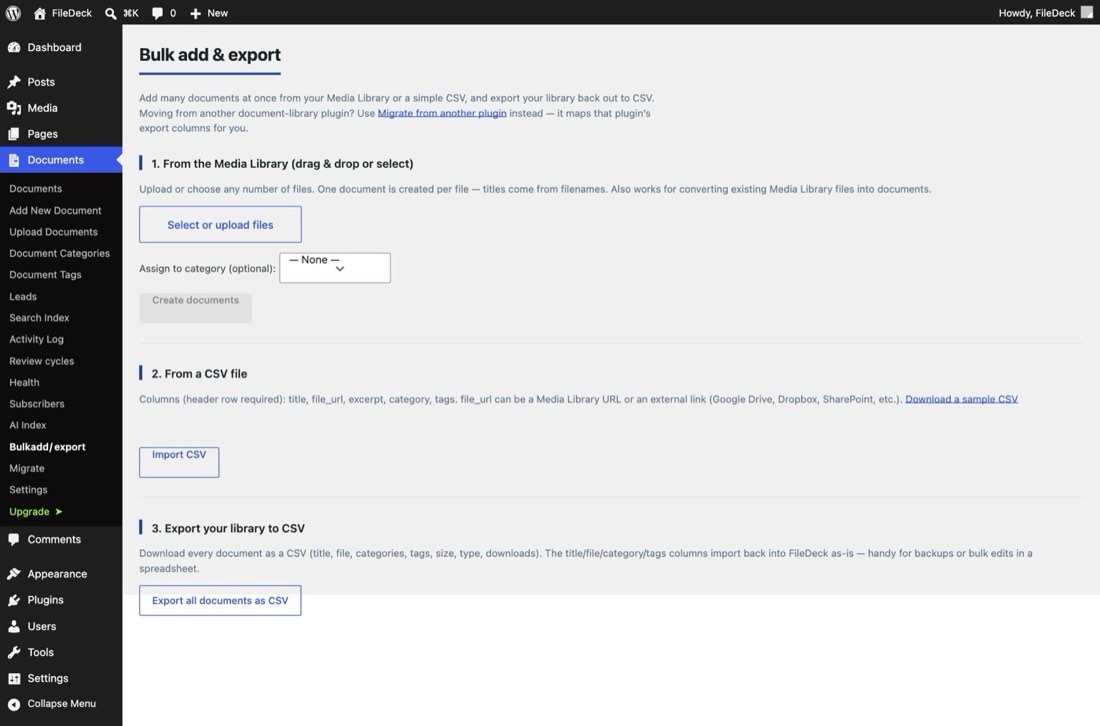
Prepare your CSV
A header row is required. Use one row per document with these columns:
| Column | Contents |
|---|---|
title |
The document title. |
file_url |
The file to attach: a Media Library URL, or an external link (Google Drive, Dropbox, SharePoint, and so on). |
excerpt |
A short summary. |
category |
The document category. |
tags |
Tags for the document. |
Not sure about the exact format? Download the sample CSV from the import screen and start from that. Save your file as UTF-8 — spreadsheet apps sometimes default to other encodings, which garbles accented characters.
Run the import
- Go to Documents → Import & Export → Bulk add & export.
- Scroll to 2. From a CSV file.
- Choose your CSV file and run the import.
- When it finishes, go to Documents → All Documents and spot-check a few results — titles, categories, and attached files.
Linking files that aren’t uploaded yet
The file_url column does not have to point at your Media Library. Rows can reference external files — Google Drive, Dropbox, SharePoint, or any other URL — so you can build a library around files that stay on their current hosts.
A row whose file_url names a file FileDeck keeps protected for another document is created without that file: a protected file isn’t shared with a new document. The result screen says how many rows that happened to, and administrators find them listed in Library Health. Attach a file from the document’s edit screen.
Migrating from another plugin?
If what you have is a CSV export from another document library plugin, do not use this screen. Go to Documents → Import & Export → Migrate instead, which lets you map that export’s columns to FileDeck’s fields — see migrate from another plugin.
Practical tips
- Test with 5 rows first. Confirm columns, categories, and files come through the way you expect before importing hundreds.
- Start from the sample CSV or an export. The sample CSV shows the exact header row; a CSV export of your own library gives you rows that re-import as-is.
- Keep it to one file per row. Each document holds a single file; use one row per document.
FAQ
Do I need a header row?
Yes. The first row must name the columns — title, file_url, excerpt, category, tags. The sample CSV on the import screen shows the exact format.
Can the CSV attach files that aren’t uploaded yet?
Yes. file_url accepts an external link as well as a Media Library URL, so reference files wherever they live.
I’m moving from another document library plugin — is this the right screen?
No — use Documents → Import & Export → Migrate, which imports another plugin’s CSV export and maps its columns to FileDeck. See migrate from another plugin.
Can I re-import a FileDeck export?
Yes. The title, file, category, and tag columns of a CSV export re-import as-is — a practical round trip for backups or spreadsheet bulk edits.
Still stuck? Email support@getfiledeck.com.