
Migrate from WP Customer Area Pro
Move a WP Customer Area library into FileDeck in one click — private files, categories, and each file's owners recreated as a client area.
FileDeck Pro imports a WP Customer Area library directly — no CSV export, no column mapping. Go to Documents → Import & Export → Migrate, and if its data is present on your site FileDeck shows how many private files it found and an Import button.
FileDeck Pro — this feature is included in all Pro plans. See pricing
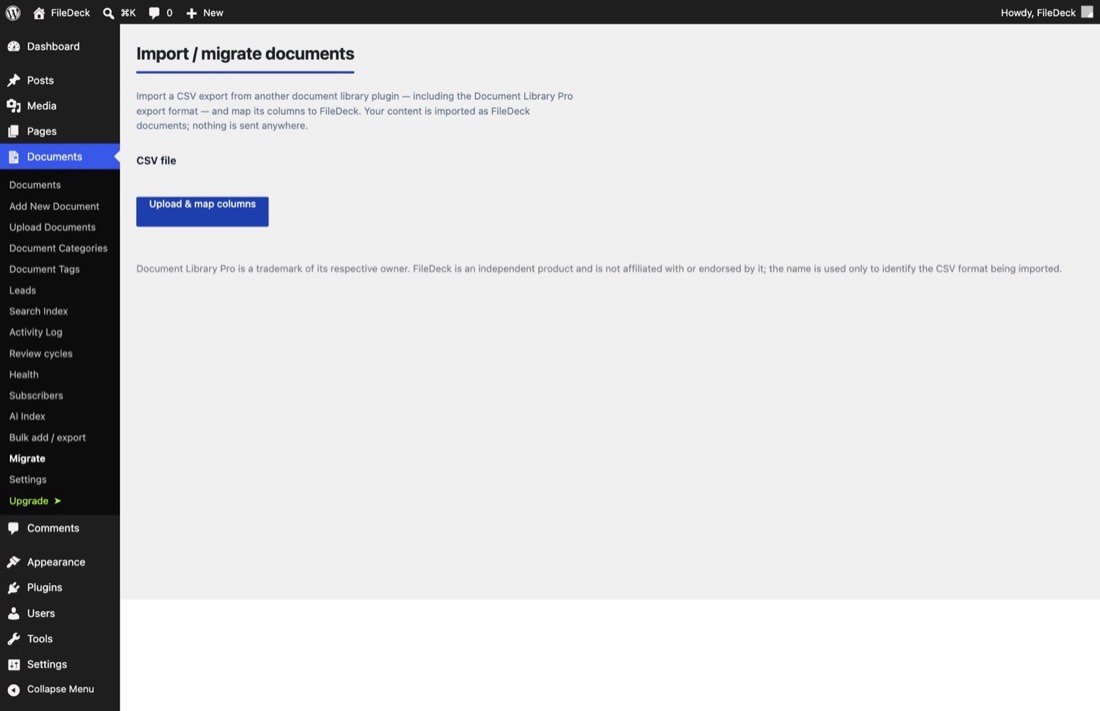
This is the one import where who can see a file matters as much as the file itself. WP Customer Area doesn’t just restrict files, it gives each one to particular customers. FileDeck’s equivalent is a client area — a category with people assigned to it — and that’s what your ownership becomes.
What comes across
| From WP Customer Area | Becomes in FileDeck |
|---|---|
| Private file title | Document title |
| Its excerpt or content | Document description |
| Its categories, including sub-categories | Document categories, with the same nesting |
| The attached file | A file in your Media Library, linked to the document |
| The file’s owners | A client area those people are assigned to |
How your customers’ access is preserved
A file owned by one customer becomes a client area for that person. Only they — and administrators — can see it.
A file owned by several people together goes into a single client area with all of them assigned, rather than one area each. That distinction matters: in FileDeck, a document is hidden from anyone who isn’t in every client area it belongs to. Giving two owners an area each would have hidden their shared file from both of them. One shared area is what actually reproduces "these people can see this."
Client areas are named after their members — Alice, or Bob + Carol, or Alice and 4 others for larger groups. Rename them to whatever your customers would recognise; the assignments stay as they are.
How to import
- Keep WP Customer Area active for now, so FileDeck can read its files and owners.
- Go to Documents → Import & Export → Migrate.
- On the WP Customer Area card, choose Publish or import as drafts, then click Import.
- The import runs in the background — you can leave the page.
- When it finishes, check a few documents under Documents → All Documents, and open Documents → Categories to see the client areas that were created.
- Rebuild the search index at Documents → Settings → Search Index so full-text search picks up the new documents.
- Once you’re happy, deactivate WP Customer Area.
Your customers reach their documents through the [filedeck_my_documents] shortcode — put it on a page and each person sees only the areas they’re assigned to. See Client areas.
Is it safe to run more than once?
Yes. FileDeck records which private file each document came from, so re-running skips anything already imported. Your original content is never modified.
FAQ
Are my files copied?
Yes, and deliberately. WP Customer Area keeps its files in a private folder outside your uploads directory, where they can’t be served by the web server at all. Linking to them would produce a dead link, so FileDeck copies each file into your Media Library, where it can serve it and protect it behind signed links. The original files are left exactly where they are — nothing is moved or deleted.
What if a file’s owner no longer exists?
It is imported as logged-in users only, never as a public document.
The same applies to files owned by a group rather than named users: group membership lives in WP Customer Area add-ons whose data FileDeck doesn’t read, so rather than guess who was in the group, the file arrives restricted. In both cases you’ll find the documents under Documents → All Documents and can assign them to the right client area yourself.
The rule throughout is that a file which was private stays private. FileDeck never resolves an unknown owner by making the file public.
What about files with no owner at all?
Those were general-purpose files rather than customer files, so they import as ordinary documents with your normal visibility.
Can a document have more than one file?
FileDeck is one file per document, and WP Customer Area is too by default. If your site raised that limit, the first file becomes the document’s file and the remaining count is recorded on the document so you can spot them — search for documents with extra files and add them as their own documents.
Do I have to keep WP Customer Area installed afterwards?
No. Keep it active during the import, then deactivate it once you’ve confirmed the documents and client areas are right. Its private files folder stays on disk; you can remove it once you’re confident, since FileDeck now has its own copies.
Are payments, invoices or customer pages imported?
No. FileDeck is a document library, not a customer portal with billing — only private files and their access come across. Anything you were using WP Customer Area’s payment or private-page features for needs a different home.
WP Customer Area is a trademark of its respective owner. FileDeck is an independent product, not affiliated with or endorsed by it; the name is used only to identify the plugin whose data is being imported.
Still stuck? Email support@getfiledeck.com.