
Migrate from Document Library Pro / Lite Pro
Move a Document Library Lite or Pro library into FileDeck in one click at Documents → Import & Export → Migrate — documents, categories, tags and files, all on your own server.
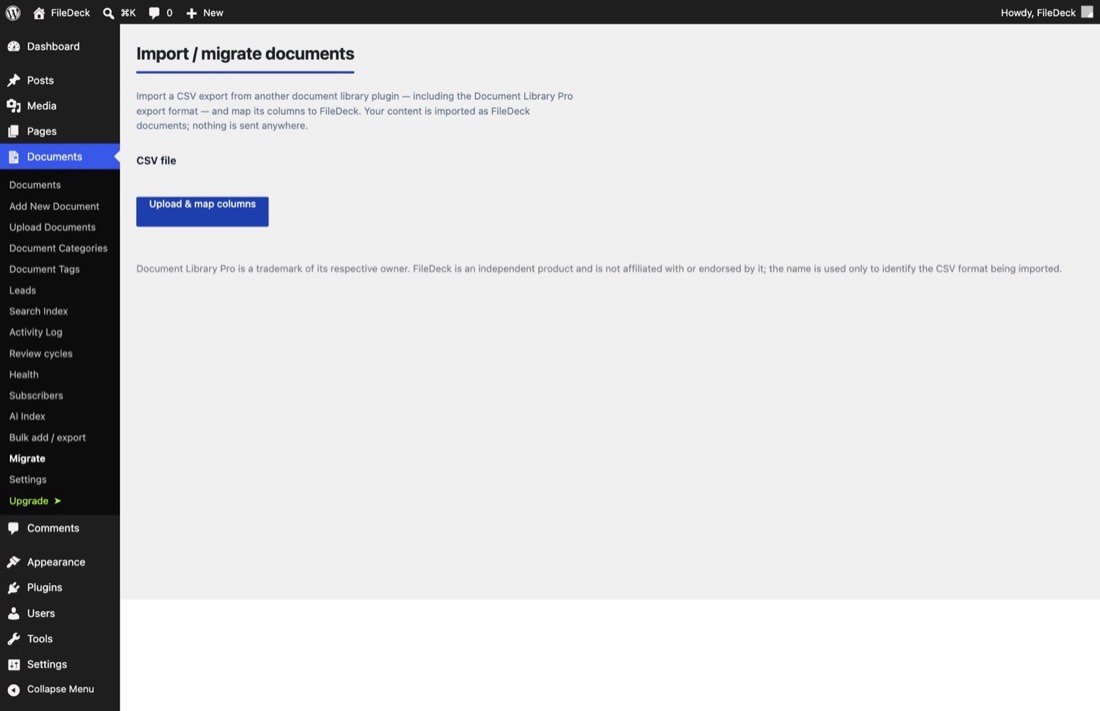
FileDeck Pro imports a Document Library Lite or Document Library Pro library directly — no export file, no column mapping. Go to Documents → Import & Export → Migrate, and if Document Library’s data is present on your site FileDeck shows how many documents it found and an Import button. One click copies them across as FileDeck documents, and everything runs on your own server; nothing is sent anywhere.
FileDeck Pro — this feature is included in all Pro plans. See pricing
What comes across
| From Document Library | Becomes in FileDeck |
|---|---|
| Document title & description | Document title & description |
| Document categories (including sub-categories) | Document categories, with the same nesting |
| Document tags | Document tags |
| A document’s attached file | The document’s file, kept as the same Media Library attachment |
| A document’s external link (Pro) | The document’s file, linked by URL |
Each document becomes one FileDeck document. Document Library keeps no separate per-document download counter or per-document access rule, so those aren’t part of the import — you can add download tracking and access control in FileDeck afterwards.
How to import
- Keep Document Library active for now, so FileDeck can read its files and categories.
- Go to Documents → Import & Export → Migrate.
- On the Document Library card, choose whether to Publish the imported documents or bring them in as drafts to review first, then click Import.
- The import runs in the background — you can leave the page. Progress shows how many documents have been processed.
- When it finishes, open Documents → All Documents and spot-check a few: titles, categories, and files.
- Rebuild the search index at Documents → Settings → Search Index so full-text search picks up the new documents.
- Once you’re happy, deactivate Document Library.
Is it safe to run more than once?
Yes. FileDeck records which Document Library document each import came from, so re-running skips anything already imported and never creates duplicates. If an import is interrupted, just start it again — it picks up where it left off. Your original content is never modified.
FAQ
Does this work with both the free Lite and paid Pro versions?
Yes. Document Library Lite and Document Library Pro store their documents the same way, so the importer reads both. Pro documents that link to an external file (rather than an uploaded one) come across as external links.
Do my files get copied or moved?
Neither. A document’s uploaded file is already a Media Library attachment, and FileDeck links to that same attachment; external links are linked by URL. Nothing is duplicated on disk.
What about download counts or access rules?
Document Library doesn’t store a per-document download counter or per-document access rule, so there’s nothing of that kind to bring across. After importing you can turn on FileDeck’s own download tracking and apply category-level access control.
Do I have to keep Document Library installed afterwards?
No. Keep it active during the import so FileDeck can read its data, then deactivate (or delete) it once you’ve confirmed everything came across.
Document Library Pro and Document Library Lite are trademarks of their respective owner. FileDeck is an independent product, not affiliated with or endorsed by it; the names are used only to identify the plugin whose data is being imported.
Still stuck? Email support@getfiledeck.com.