
Migrate from WordPress Download Manager Pro
Move a WordPress Download Manager library into FileDeck in one click at Documents → Import & Export → Migrate — packages, categories, files, download counts and access rules.
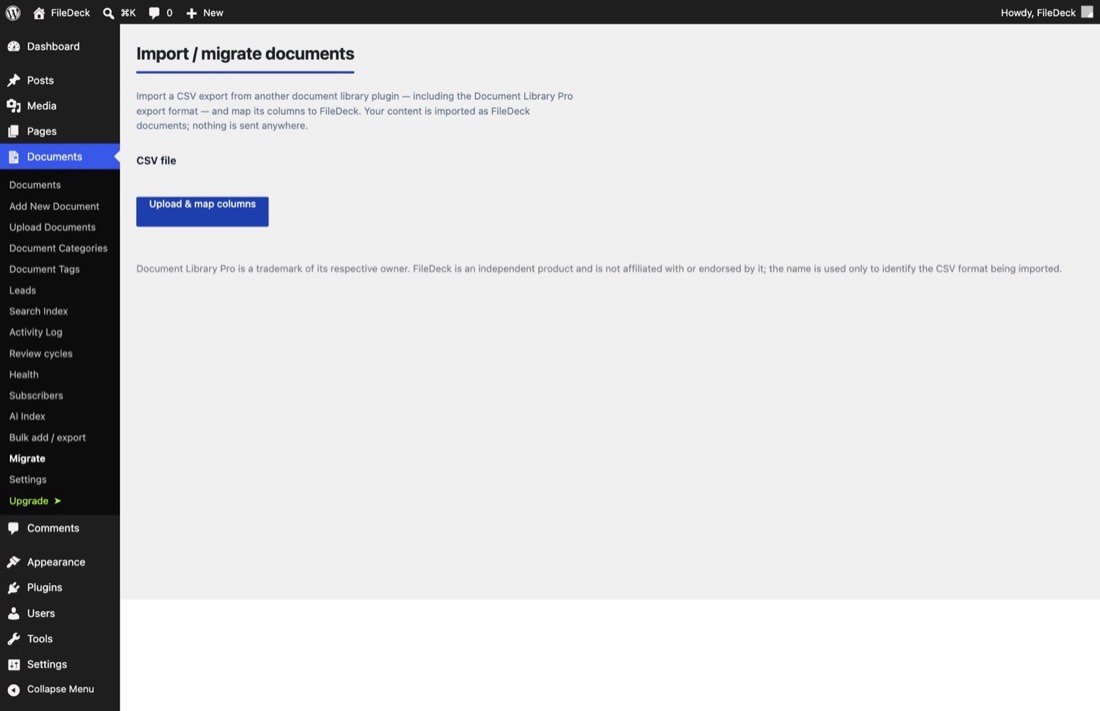
FileDeck Pro imports a WordPress Download Manager library directly — no export file, no column mapping. Go to Documents → Import & Export → Migrate, and if WordPress Download Manager’s data is present on your site FileDeck shows how many packages it found and an Import button. One click copies your packages across as FileDeck documents, and everything runs on your own server; nothing is sent anywhere.
FileDeck Pro — this feature is included in all Pro plans. See pricing
What comes across
| From WordPress Download Manager | Becomes in FileDeck |
|---|---|
| Package title & description | Document title & description |
| Package categories (including sub-categories) | Document categories, with the same nesting |
| Package tags | Document tags |
| The package’s first file | The document’s file — kept as a Media Library attachment where possible, otherwise linked by URL |
| Download count | The document’s download count |
| Restricted packages (locked to roles or a password) | Documents set to logged-in users only visibility |
Each package becomes one FileDeck document, using its first file. FileDeck keeps one file per document, so packages that bundle several files come across with the first; add the rest as separate documents if you need them listed individually.
How to import
- Keep WordPress Download Manager active for now, so FileDeck can read its files and categories.
- Go to Documents → Import & Export → Migrate.
- On the WordPress Download Manager card, choose whether to Publish the imported documents or bring them in as drafts to review first, then click Import.
- The import runs in the background — you can leave the page. Progress shows how many packages have been processed.
- When it finishes, open Documents → All Documents and spot-check a few: titles, categories, files, and counts.
- Rebuild the search index at Documents → Settings → Search Index so full-text search picks up the new documents.
- Once you’re happy, deactivate WordPress Download Manager.
Is it safe to run more than once?
Yes. FileDeck records which package each imported document came from, so re-running the import skips anything already imported and never creates duplicates. If an import is interrupted, just start it again — it picks up where it left off. Your original WordPress Download Manager content is never modified.
FAQ
Do my files get copied or moved?
Neither. Files already in your Media Library are linked as attachments; files stored in WordPress Download Manager’s own upload folder (or on a remote URL) are linked in place. Nothing is duplicated on disk.
Will my download counts be preserved?
Yes — each package’s download count is carried over to the FileDeck document, so your numbers don’t reset to zero.
What happens to password-protected or role-restricted packages?
They become FileDeck documents restricted to logged-in users, so they stay gated after the move. WordPress Download Manager’s finer per-role and per-package-password rules don’t have a per-document equivalent in FileDeck — you can re-apply precise rules with FileDeck’s category-level access control, which is where roles and passwords live.
My packages have several files each — what happens?
FileDeck documents hold one file each, so the package’s first file comes across. If you need every file listed separately, add the extras as their own documents after the import.
Do I have to keep WordPress Download Manager installed afterwards?
No. Keep it active during the import so FileDeck can read its data, then deactivate (or delete) it once you’ve confirmed everything came across.
WordPress Download Manager is a trademark of its respective owner. FileDeck is an independent product, not affiliated with or endorsed by it; the name is used only to identify the plugin whose data is being imported.
Still stuck? Email support@getfiledeck.com.