
Inline document preview Pro
The free preview lightbox covers PDFs and images; FileDeck Pro extends it to Office documents, audio, and video so visitors can view documents without downloading them.
Updated September 27, 2026
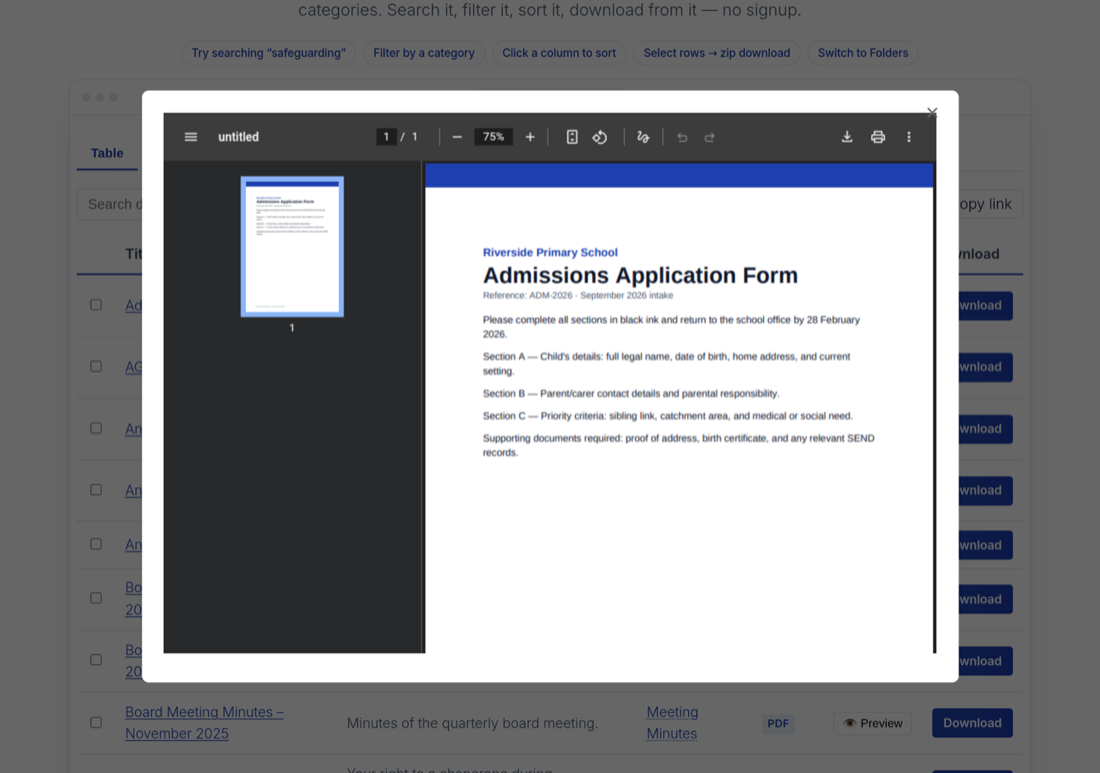
FileDeck lets visitors open a document in a preview lightbox without downloading it. The free version previews PDFs (in the browser’s built-in viewer) and images; FileDeck Pro extends the lightbox to Office documents, which display right in the lightbox, and to audio and video files, which play in a built-in player. File types that cannot be previewed simply fall back to the normal download.
FileDeck Pro — Office, audio, and video preview is included in all Pro plans; PDF and image preview is free. See pricing
Supported file types
- PDFs (free) — rendered by the browser’s own PDF viewer inside the lightbox.
- Images (free) — shown directly in the lightbox.
- Google Docs, Sheets, Slides and Drive links (free) — pasted share links on external documents render as live documents.
- Office documents (Pro) — displayed in the lightbox, so visitors can read them without downloading.
- Audio and video (Pro) — played with inline players, so visitors can listen or watch without leaving the library.
- YouTube and Vimeo links (Pro) — external video links play through each provider’s embed player.
Anything else — archives, for example — is not previewable in the browser, so those documents keep their standard download behavior. Visitors are never shown a broken viewer.
Enable preview in your library
- Go to Documents → Settings → Features in wp-admin.
- Turn on Document preview lightbox.
- A Preview button appears alongside the download link for supported documents in your library layouts.
Visitors can then check a document is the one they want before committing to a download — useful for long PDFs and media files.
Preview and protected files
Access is checked when the library row is rendered: a visitor who is not allowed to view a document gets no Preview button for it. Previews of protected files load through a signed link that expires after 15 minutes, made only for a visitor who passed that check. Lead capture, terms, the form and bot checks and daily download limits apply to downloads, not previews: if readers must accept your terms before seeing a file at all, turn the preview lightbox off. Protected Office files are the exception — rendering them would require handing the file to an external viewer service, so they offer a download button instead.
FAQ
Which file types can be previewed?
PDFs and images in the free version; Office documents and audio and video files with Pro. Other types fall back to a normal download link.
What happens when a document cannot be previewed?
Non-previewable types, such as archives, are offered as a standard download instead — the preview lightbox is only shown for supported types.
Can visitors preview documents they are not allowed to download?
No. Preview goes through the same permission check as downloads, so access rules apply equally to previewing.
Does preview require any browser plugins?
No. The preview lightbox works in any modern browser without plugins or extensions.
Still stuck? Email support@getfiledeck.com.