
Migrate from another document library plugin Pro
Move your library from another document library plugin at Documents → Import & Export → Migrate: one click for supported plugins, CSV with column mapping for the rest.
Updated October 14, 2026
You can move an existing library into FileDeck two ways: a one-click import that reads a supported plugin’s data directly, or a CSV import for everything else. Both run entirely on your own server; nothing is sent anywhere. You’ll find them together at Documents → Import & Export → Migrate.
FileDeck Pro — this feature is included in all Pro plans. See pricing
One-click import from a detected plugin
FileDeck detects supported document and download plugins already installed on your site and copies your documents, categories (with nesting) and files across in one click — no CSV export step. Where the source plugin records them, download counts and access restrictions come across too. Right now this covers:
- Download Monitor — imports your downloads, categories, tags, files, download counts, and members-only visibility.
- Simple Download Monitor — imports your downloads, categories, tags, descriptions, files, download counts, and logged-in-only downloads. (A different plugin from Download Monitor above; if you have both, you’ll see both.)
- WordPress Download Manager — imports your packages, categories, tags, files, download counts, and restricted-package visibility.
- Document Library Pro / Lite — imports your documents, categories, tags and files (attached or external-link).
- Shared Files — imports your files, categories, tags, download counters, and password-protected items.
- Simple File List — imports your files, folders as nested categories, descriptions, dates and access restrictions.
- Advanced File Manager — turns a managed folder into a library, with sub-folders as nested categories and the files copied into your Media Library.
- BSK PDF Manager — imports your PDFs, nested categories, descriptions, download counts, expiry dates and restricted items, read from its own database tables.
- Download Attachments — imports the Media Library files it manages, with their download counts, grouped into categories named after the posts they were attached to.
- WP Customer Area — imports your private files and their categories, and turns each file’s owners into a FileDeck client area so the same customers keep access.
- FileBird — turns the documents in your FileBird folders into a library, with the folder tree as nested categories and your photos left alone. Also covers FileBird Document Library, which uses the same folders.
On the Documents → Import & Export → Migrate screen, each detected plugin shows how many documents it found and an Import button. Keep the old plugin active while you import so FileDeck can read its files and categories, then deactivate it once you’ve spot-checked the results. The import runs in the background, so you can leave the page; re-running it is safe — documents already imported are skipped, never duplicated. If any item can’t be imported, the finished-import notice names it and offers Import again (what to check).
Where a plugin keeps its items as WordPress posts, an item that wasn’t published arrives as a draft, and an item locked with WordPress’s own Password protected visibility keeps its password, so the document asks for it before its file can be downloaded (password protection). And a file that FileDeck already keeps protected for another of your documents isn’t shared with an imported one: that document comes in without a file, the finished-import notice counts it, and Library Health lists it so you can attach one.
What happens to my old links?
Once you’ve imported and deactivated the old plugin, FileDeck answers the links it left behind: download links go to the file, item and category pages move to their FileDeck pages, and shortcodes in your posts show FileDeck’s download buttons and libraries. That covers Download Monitor, WordPress Download Manager, Simple Download Monitor, Shared Files and Simple File List, plus BSK PDF Manager’s shortcodes. Old links keep working after you migrate lists each link and where it goes. That part is in the free plugin, so it keeps working if your Pro licence lapses.
Imported from one of those plugins before FileDeck brought passwords across? Importing again leaves documents that are already in your library as they are, so the Migrate screen lists any imported document that doesn’t ask for its item’s password yet, with a button to add the same passwords, and one to leave them as they are if you opened them on purpose.
How do I migrate my library by CSV?
- In your previous document library plugin, export the library to CSV. Check that plugin’s documentation for where its export lives.
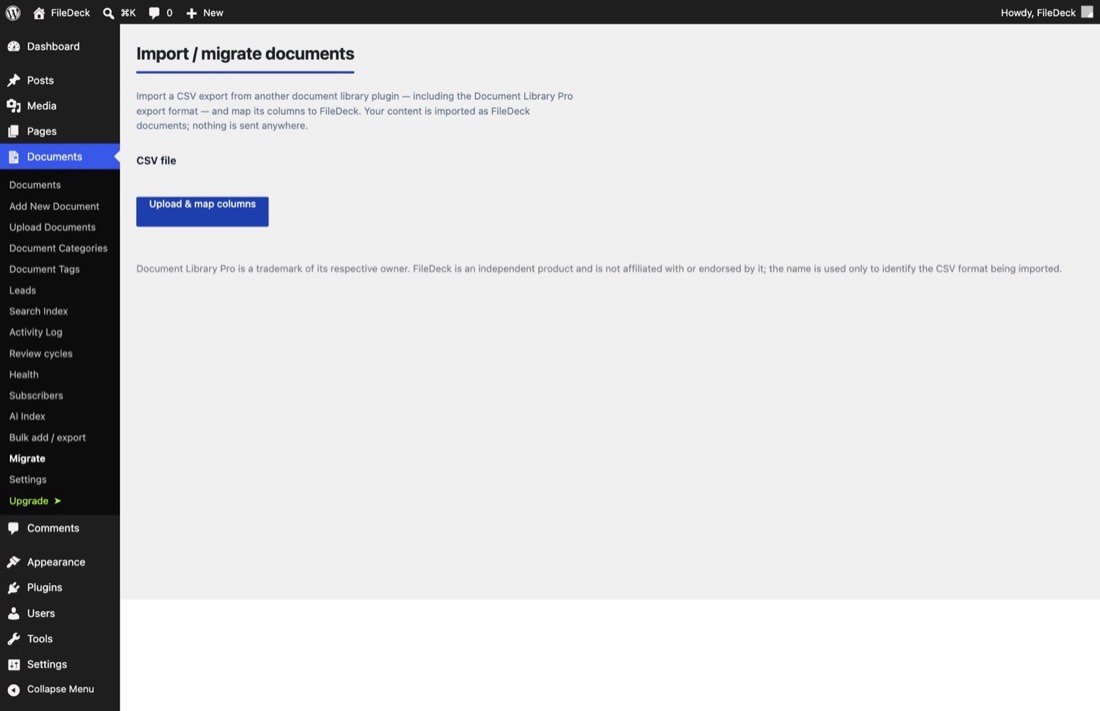
- Go to Documents → Import & Export → Migrate — the Import / migrate documents screen.
- Use Upload & map columns to upload the CSV export.
- Map the CSV’s columns to FileDeck fields. Every plugin names its columns differently, which is why you match them up yourself.
- Run the import. Each row becomes a FileDeck document.
After the import, rebuild the search index at Documents → Settings → Search Index so full-text search picks up the new documents — FileDeck recommends a rebuild after any bulk import.
When should I use Bulk add / export instead?
Migrate is for CSV exports from other plugins, whose columns don’t match FileDeck’s format. If your CSV is already in FileDeck’s own format — a header row with title, file_url, excerpt, category, tags — use Documents → Import & Export → Bulk add & export instead, which imports it directly without any column mapping. See Import documents from CSV.
The same screen also exports your FileDeck library to CSV, which is useful for backups once you have finished migrating. See Export your library to CSV.
Does any of my data leave my site?
No. Both paths run entirely on your own server: a one-click import reads the other plugin’s data straight out of your WordPress database, and a CSV import reads the file you upload to your own admin. FileDeck creates the documents locally either way. Nothing is sent anywhere.
FAQ
Which plugins can I migrate from?
Two ways. Supported plugins — currently Download Monitor, Simple Download Monitor, WordPress Download Manager, Document Library Pro / Lite, Shared Files, Simple File List, Advanced File Manager, BSK PDF Manager, Download Attachments, WP Customer Area and FileBird — import in one click with no CSV step. Any other document library plugin that can export to CSV can be brought across via the CSV importer; because you map the columns yourself, the exact column names don’t matter.
What happens to the rows after import?
Each row becomes a FileDeck document, and they appear under Documents → All Documents like any other document, ready to organize with categories and tags.
Do I need to keep the old plugin installed?
For a CSV import, no — FileDeck imports from the CSV file, so once you’ve exported it the import doesn’t depend on the old plugin. For a one-click import, keep the old plugin active while you import so FileDeck can read its files and categories; you can deactivate it afterwards, and for the plugins old links lists, its links and shortcodes keep working.
Why aren’t my migrated documents showing in search?
Rebuild the index at Documents → Settings → Search Index. FileDeck recommends rebuilding after any bulk import.
Still stuck? Email support@getfiledeck.com.