
Migrate from BSK PDF Manager Pro
Move a BSK PDF Manager library into FileDeck in one click — PDFs, nested categories, descriptions, download counts, expiry dates and restricted items.
FileDeck Pro imports a BSK PDF Manager library directly — no CSV export, no column mapping. Go to Documents → Import & Export → Migrate, and if its data is present on your site FileDeck shows how many PDFs it found and an Import button. One click copies them across as FileDeck documents. Everything runs on your own server; nothing is sent anywhere.
FileDeck Pro — this feature is included in all Pro plans. See pricing
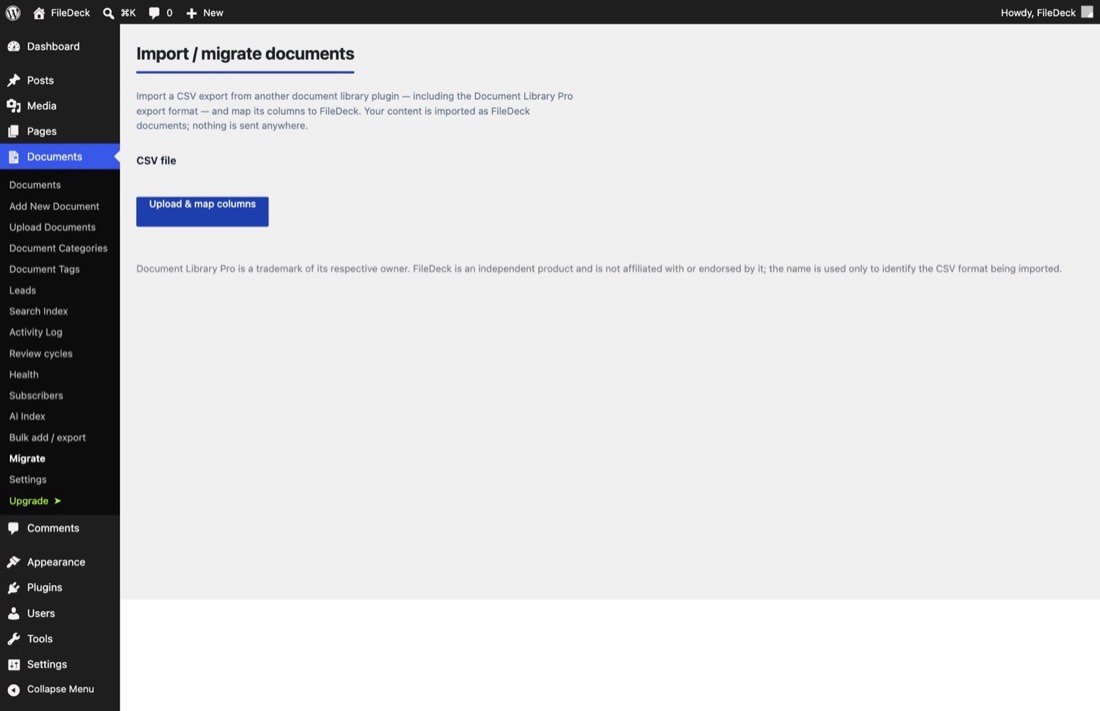
BSK PDF Manager keeps its library in its own database tables rather than in WordPress posts. That makes no difference to you here — FileDeck reads those tables directly, and the import works whether or not the plugin is still active.
What comes across
| From BSK PDF Manager | Becomes in FileDeck |
|---|---|
| PDF title (or its filename, if untitled) | Document title |
| Description | Document description |
| Categories, including sub-categories | Document categories, with the same nesting |
| The file — whether uploaded through the Media Library or placed on the server | The document’s file |
| Download count | The document’s download count |
| Publish date | The document’s date |
| Expiry date | The document’s expiry date |
| Items marked restricted | Documents set to logged-in users only |
| Items in a password-protected category | Documents set to logged-in users only |
How to import
- Keep BSK PDF Manager active for now, so FileDeck can read its files and categories.
- Go to Documents → Import & Export → Migrate.
- On the BSK PDF Manager card, choose whether to Publish the imported documents or bring them in as drafts to review first, then click Import.
- The import runs in the background — you can leave the page.
- When it finishes, open Documents → All Documents and spot-check a few: titles, categories, files, and counts.
- Rebuild the search index at Documents → Settings → Search Index so full-text search picks up the new documents.
- Once you’re happy, deactivate BSK PDF Manager.
Is it safe to run more than once?
Yes. FileDeck records which BSK PDF Manager item each imported document came from, so re-running the import skips anything already imported and never creates duplicates. If an import is interrupted, just start it again — it picks up where it left off. Your original content is never modified.
FAQ
What happens to items I deleted, or left as drafts?
Anything in BSK PDF Manager’s trash is not imported at all — it isn’t counted, listed, or brought across.
Anything you left as a draft or pending arrives as a FileDeck draft, even if you chose "Publish" for the import. Publishing something you had deliberately left unpublished isn’t a decision the importer should make for you. Publish those documents yourself when you’re ready.
What about password-protected categories?
BSK PDF Manager can put a password on a category. FileDeck’s own password rules are per-category and stored hashed, so the password itself isn’t copied across — instead, every document in a protected category arrives restricted to logged-in users, so it doesn’t become public the moment you migrate.
Once the import is done you can set up exactly the access you want with FileDeck’s category access rules, including category passwords.
My files aren’t in the Media Library — does that matter?
No. BSK PDF Manager stores some files as Media Library attachments and others directly on the server, and FileDeck handles both. Files are linked, not duplicated, and your originals stay where they are.
If any file can’t be located, that document is still imported and flagged so you can re-attach it — you won’t end up with a document silently pointing at nothing.
Do I have to keep BSK PDF Manager installed afterwards?
No. Keep it active during the import so FileDeck can read its data, then deactivate (or delete) it once you’ve confirmed everything came across.
Is anything not imported?
Per-item thumbnails and the display-ordering number aren’t carried across. FileDeck generates PDF thumbnails from the files themselves, and library ordering is a per-library setting you choose when you display it.
BSK PDF Manager is a trademark of its respective owner. FileDeck is an independent product, not affiliated with or endorsed by it; the name is used only to identify the plugin whose data is being imported.
Still stuck? Email support@getfiledeck.com.