
Choose and reorder columns Free & Pro
All 18 FileDeck columns explained, plus how to reorder them with the chips manager under Documents → Settings → Display or a shortcode columns list.
Updated October 4, 2026
FileDeck offers 18 columns, and you decide which ones display and in what order using the chips manager under Documents → Settings → Display — or per library with the shortcode’s columns attribute. The same column set works across the table, grid, gallery and folder layouts.
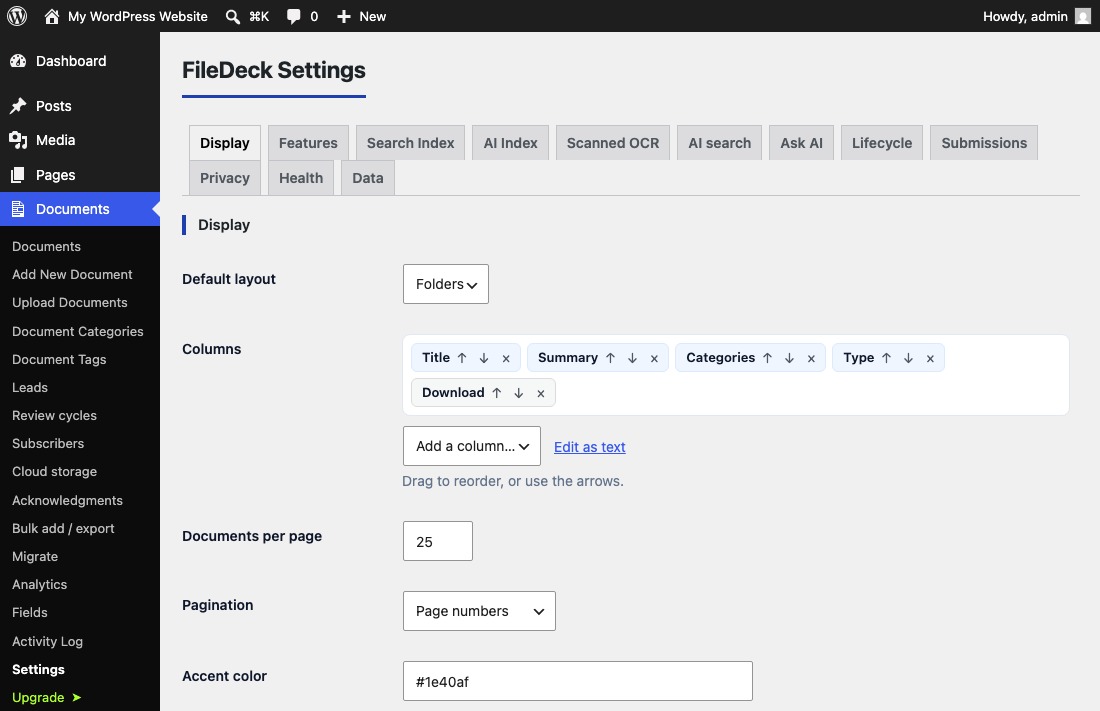
The 18 available columns
| Column | What it shows |
|---|---|
| ID | The document’s numeric ID. |
| Image | The document’s featured image thumbnail. Clicking a featured image opens it full-size in a lightbox (turn off with image_lightbox="0"). |
| Title | The document title. |
| Reference | The document’s reference number — a part number, document code or form number. Sortable. |
| Summary | The document’s short summary (its excerpt). |
| Description | The document’s full description. |
| Categories | The document categories assigned to the document. |
| Tags | The document tags assigned to the document. |
| Date | The date the document was added. |
| Updated | The date the document was last modified. |
| Author | The document’s author. |
| Size | The file size, captured automatically when the file is attached. |
| Type | The file type, captured automatically. |
| Filename | The original filename, captured automatically. |
| Views | How many times the document’s page has been viewed. Shows a dash unless the Pro activity log is recording views. |
| Downloads | The document’s download count. |
| Preview | The preview button, which opens the lightbox. |
| Download | The download link. |
The Size, Type, and Filename values are filled in for you when you attach a file — see document fields for where each value comes from.
Using the chips manager
- Go to Documents → Settings → Display.
- Each active column appears as a chip. Use the ↑ and ↓ arrows to move a chip, or simply drag chips into the order you want; the chip order is exactly the order visitors see.
- Click × on a chip to remove that column.
- Use Add a column… to bring in any column that is not currently shown.
- Prefer typing? Edit as text switches the manager to a plain text list you can edit directly — handy for copying a column set between sites or into a shortcode.
Overriding columns per library
The settings screen sets the default for every library. To give one page its own column set, pass the columns attribute a comma-separated list in the shortcode — the list order is the display order:
[filedeck columns="image,title,categories,date,size,link"]
The library builder sets these options with a live preview, at Documents → Library builder or from the Document Library block.
Download link styles
The Download column can render as a Button, Button with icon and text, Button with icon only, Icon only, Icon and text link, or Text link — set on the same Display tab, with colors following your accent color (see styling). The button’s text is also yours to change: set Download link text on the Display tab, or per library with dl_text="Get file" in the shortcode. If you prefer downloads not to navigate away from the library page, enable Open downloads in a new tab under Documents → Settings → Features.
FAQ
How do I change the column order?
In the chips manager, drag chips or use the ↑ ↓ arrows. In the shortcode, reorder the comma-separated list — the list order is the display order.
Which columns should I use?
For tables, five to seven columns is a good range; Title, Categories, Date, Size, and Download covers most libraries. For grids, lead with Image and keep the rest short.
Can the download link open in a new tab?
Yes. Turn on Open downloads in a new tab under Documents → Settings → Features, and visitors keep the library page open while the file downloads or opens.
Are all 16 columns free?
Yes. Every column and all four download link styles are included in the free plugin.
Still stuck? Email support@getfiledeck.com.