
Table layout Free & Pro
FileDeck's table layout lists documents in sortable rows, ideal for scanning many files. Covers sortable headers, mobile behavior, and columns.
Updated August 23, 2026
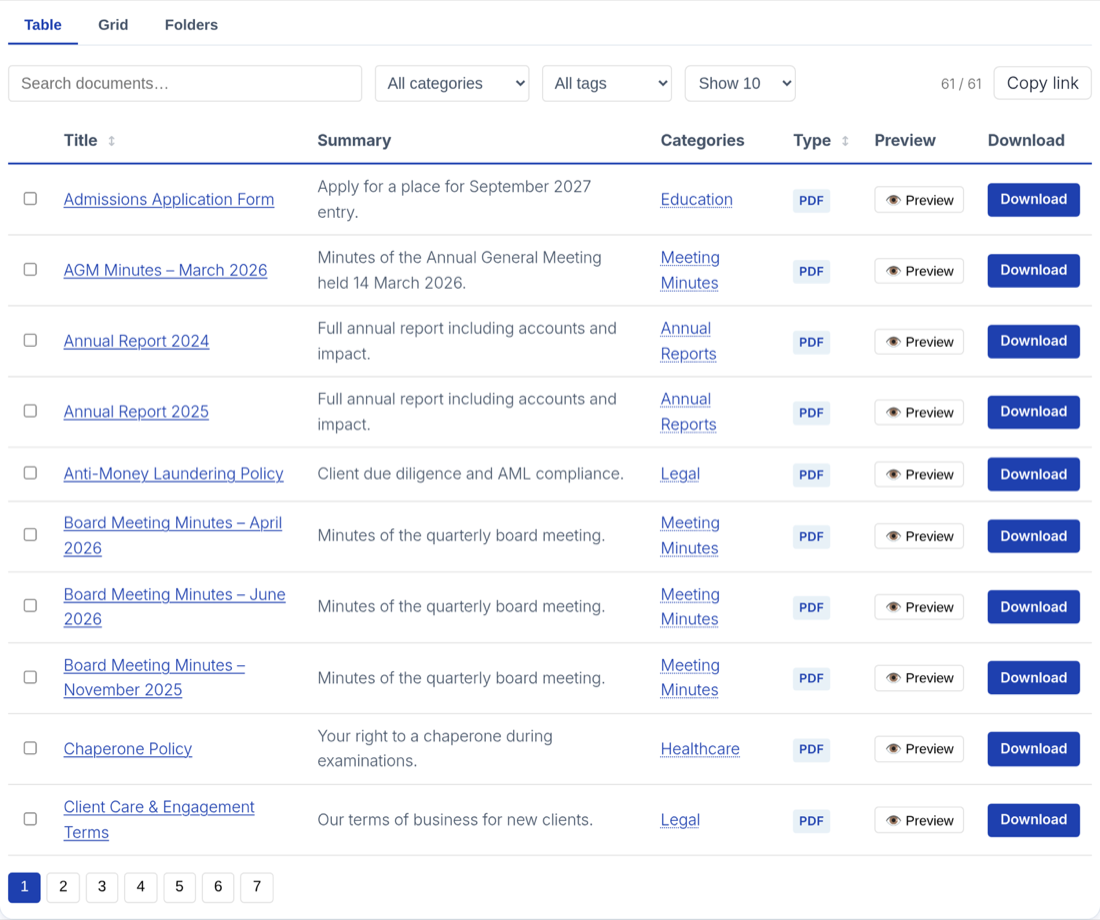
The table layout lists your documents in rows with one column per field — title, date, size, download link, and so on. It is FileDeck’s default layout and the best choice when visitors need to scan or compare many documents quickly, because every document’s details line up in columns and any column header can be clicked to sort.
When to use the table layout
Choose the table when the information about each document matters as much as the document itself: policy libraries, meeting minutes, financial reports, technical datasheets. Rows are compact, so a single screen can show far more documents than a card grid, and visitors can sort by whichever column answers their question — newest first, largest first, alphabetical.
Sortable column headers
Every column header in the table is clickable. Visitors click a header to sort by that column, and click again to reverse the direction. Shift-click a second header — or press Shift+Enter on it — and it becomes a tiebreaker instead of replacing the first, so a library can be ordered by file type and then by date. Up to three columns can take part, each showing a small number for its place in the order. See instant search, sorting, and filters. This works alongside the instant search box and the multi-select category and tag filters — see instant search, sorting, and filters. FileDeck tables are also built to WCAG AA accessibility standards.
Category links and shareable views
Two more table behaviors help visitors get to — and share — the right slice of the library:
- With Clicking a category in the table filters by it turned on under Documents → Settings → Features, category names in rows become filters: one click narrows the library to that category.
- The Copy link button copies a shareable URL of the current view — search, filters, and sorting included — so a visitor can send someone straight to the same filtered list.
Recommended columns
A table works best with five to seven columns. A good general-purpose set:
[filedeck layout="table" columns="title,categories,date,size,type,link"]
Add excerpt if your documents have short summaries worth showing, or modified for libraries where the last-updated date matters more than the publish date. All 16 available column keys, with the drag-to-reorder builder at Documents → Settings → Display, are covered in choose and reorder columns.
How the table behaves on mobile
On phones (below 600px) the table restacks: the header row is hidden and each document becomes its own bordered card, with every cell labelled by its column name. Nothing is hidden and there is no awkward sideways swiping. Between 600px and full width the table scrolls horizontally if the columns need more room than the screen has, so keeping the column count moderate still helps on tablets.
Example shortcode
[filedeck layout="table" columns="title,excerpt,categories,date,size,link" sort_by="date" per_page="25"]
The same configuration is available visually in the Document Library block, which previews the table live while you set the layout, columns and category.
FAQ
Is the table layout the default?
Yes. If you use [filedeck] with no layout attribute, or insert the block without changing the layout picker, you get the table.
Can visitors sort the table themselves?
Yes. Clicking any column header sorts by that column; clicking again reverses the order. The sort_by and sort_order attributes set the initial order.
What does the table look like on a phone?
Below 600px each row becomes a stacked card with its own labelled fields, rather than a sideways-scrolling table — so nothing is hidden and nothing needs swiping. Horizontal scrolling only comes into play on wider screens when the columns genuinely need more width than is available.
Still stuck? Email support@getfiledeck.com.