
Folder layout Free & Pro
FileDeck's folder layout groups documents into collapsible folders built from your document categories, ordered the way you choose, with search that opens folders.
Updated August 23, 2026
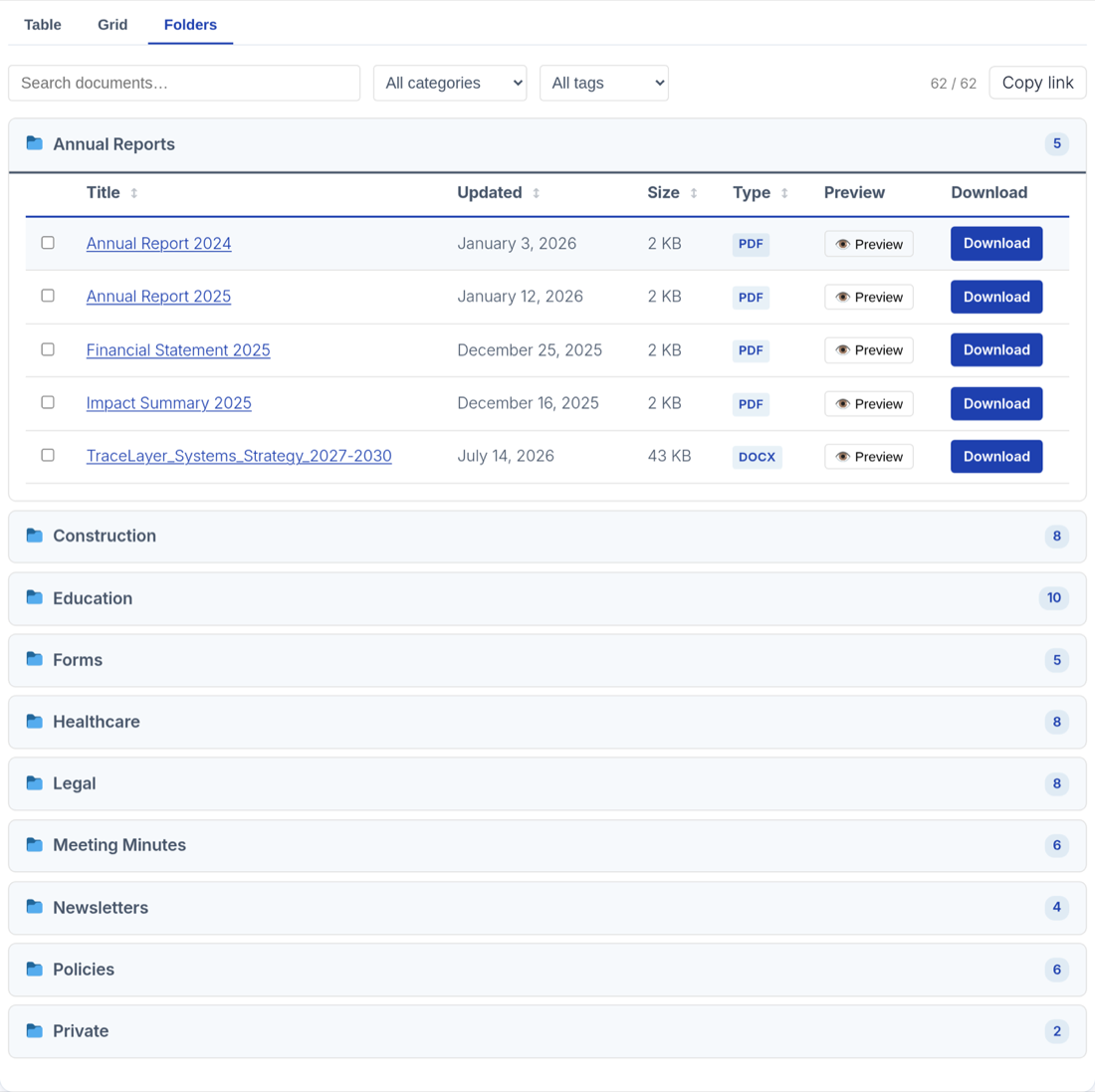
The folder layout presents your library as a set of collapsible folders, one per document category, that visitors click to expand. It gives a familiar file-manager feel and works well when your documents have a clear category structure — departments, years, project phases — that visitors already think in.
Download a whole folder (Pro)
Each folder header carries a Download all button that zips everything inside it in one go — no ticking required. It uses the same delivery path as a multi-select zip, so any lead capture, terms acceptance or bot protection you have configured still applies. See download multiple files as one zip.
How folders are built from categories
Folders are driven entirely by your hierarchical document categories: every category becomes a folder, and the documents assigned to it appear inside. You do not arrange folders in the layout itself — you manage the structure under Documents → Document Categories, and the layout reflects it. See categories and tags for how to set up the hierarchy.
The folder list is flat: FileDeck renders one collapsible folder per category that has documents. Sub-categories appear as their own folders alongside their parent rather than nested inside it, so a parent category "HR" with children "Policies" and "Forms" gives you three sibling folders. Documents with no category are grouped into a final "Other" folder.
Choose the folder order
Folders are alphabetical by default. To arrange them yourself, give categories a number: go to Documents → Document Categories, edit a category, and set Folder order. Numbered categories come first, lowest number first; categories without a number follow in alphabetical order, and the "Other" folder always stays last. Clear the number to return a folder to its alphabetical place.
How search behaves in the folder layout
The instant search box works in the folder layout just as it does elsewhere, with one addition: as a visitor types, folders containing matching documents open automatically so results are visible without any clicking, and folders with no matches stay out of the way. Clearing the search returns folders to their normal collapsed state. For everything search matches against, see instant search, sorting, and filters.
Example shortcode
[filedeck layout="folders" columns="title,size,type,link"]
You can scope a folder library to part of your category tree, too:
[filedeck layout="folders" category="hr"]
The same options are available in the Document Library block — pick folders in the layout picker and preview the result live.
FAQ
How do I change what folders appear?
Edit your categories under Documents → Document Categories. There is one folder per category that contains documents, named after the category — renaming a category renames its folder.
How do I change the order of folders?
Give categories a Folder order number on the category edit screen (Documents → Document Categories). Numbered folders come first, lowest number first; folders without a number stay alphabetical after them.
Can folders be nested inside each other?
No — the folder list is one flat level. If you use sub-categories, each one gets its own folder next to its parent rather than sitting inside it. Scoping a library to a parent category (category="hr") does still include documents from its child categories; they just appear under their own folder names.
What happens to a document that is in two categories?
It appears inside each of its categories’ folders, so visitors find it whichever way they browse.
Do visitors see empty folders?
A category only makes a useful folder when it has documents. If a folder looks empty, check that documents are actually assigned to that category under Documents → All Documents.
Sub-folders
Folders follow your category hierarchy. A category with a parent renders inside that parent rather than beside it, as deep as your categories go, so a library filed into "Policies → Safeguarding → Reviews" browses the same way.
Each folder’s count includes everything beneath it , not just the documents filed directly in it — a parent whose files all live one level down would otherwise read as empty.
Sub-folders are listed before that folder’s own documents. A folder that opened onto a wall of files with its sub-folders buried underneath would read as though it had no sub-folders at all.
No setting to change: if your categories are flat, the layout looks the same as it did before.
Download all, on a parent
The Download all button on a folder takes everything inside it , sub-folders included — it ticks the same rows you could tick by hand, so it passes every gate an ordinary download passes (lead capture, terms, the bot check). A folder holding no documents shows no button.
Still stuck? Email support@getfiledeck.com.