
Bulk upload documents by drag and drop Free
Drag any number of files onto Documents → Upload Documents (Import & Export → Upload files on Pro) — each becomes a document, with an optional category and tags.
Updated September 26, 2026
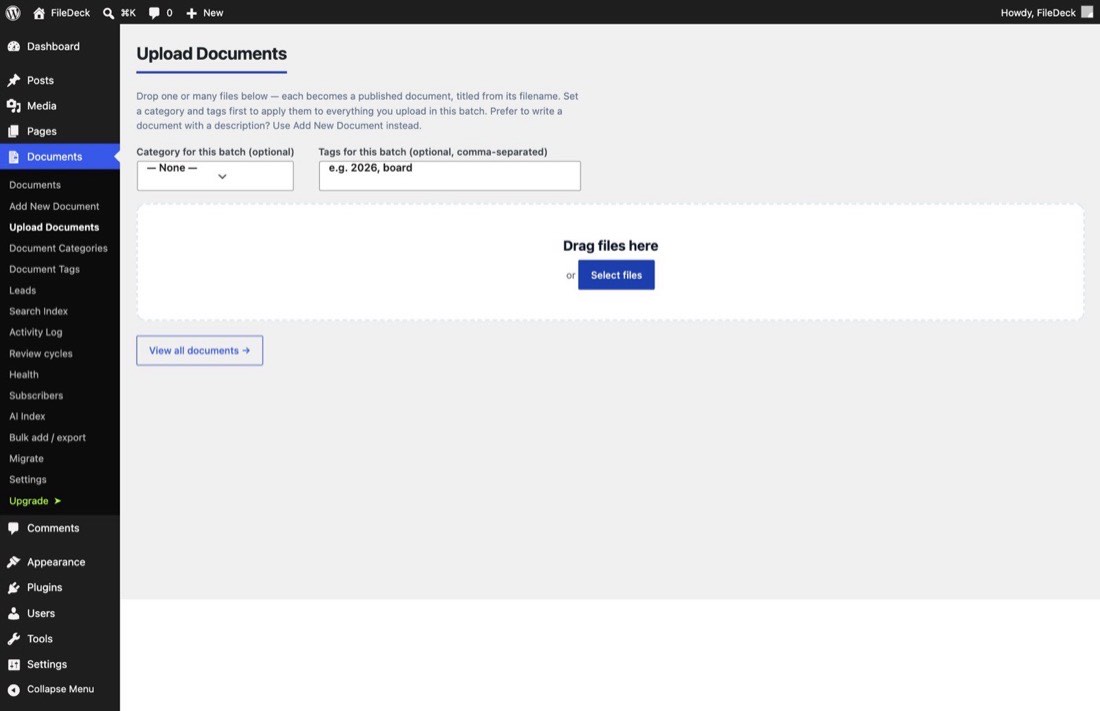
The fastest way to fill a FileDeck library is Documents → Upload Documents (on Pro it sits under Documents → Import & Export → Upload files): drop one or many files onto the screen and each becomes a published document, titled from its filename. Before you drop, you can set an optional category and comma-separated tags that apply to the whole batch. There is no per-file form to fill in — the files go straight from your desktop to your library.
How do I bulk upload files?
- Go to Documents → Upload Documents — or, on Pro, Documents → Import & Export → Upload files.
- Optionally choose a category for the batch.
- Optionally enter tags, separated by commas — for example
2026, onboarding, hr. - Drag your files onto the screen (or select them from your computer).
Each file is uploaded to the Media Library and published as its own document. The document title comes from the filename, and the category and tags you set are applied to every document in the batch.
Because the batch fields apply to each file in the batch, upload in themed groups: set the category to Policies, drop your policy PDFs, then change it to Forms and drop the next group. Titles are built from filenames — the extension dropped, hyphens and underscores turned into spaces, each word capitalised — so renaming files to clean, human-readable names before uploading saves editing afterwards.
When should I use a different method?
Upload Documents is built for speed, not detail. FileDeck has three other ways in, each suited to a different job:
- One document with a full description — use Add New Document. The Upload Documents screen says it directly: "Prefer to write a document with a description? Use Add New Document instead."
- A spreadsheet of documents — use CSV import under Documents → Import & Export → Bulk add & export, which supports per-row titles, excerpts, categories, tags, and external file URLs.
- Files already in your Media Library — use Bulk convert from the Media Library rather than re-uploading them.
FAQ
Are uploaded documents published immediately?
Yes. Each file becomes a published document as soon as the upload finishes. If you want to review them first, switch them back to draft from the Documents list afterwards.
Can I set a different category per file?
Not on this screen — the category and tags apply to the whole batch. Upload in groups per category, or use CSV import for per-row categories.
Where do the uploaded files live?
In the WordPress Media Library, like any other upload. FileDeck creates a document for each file and attaches it.
Still stuck? Email support@getfiledeck.com.